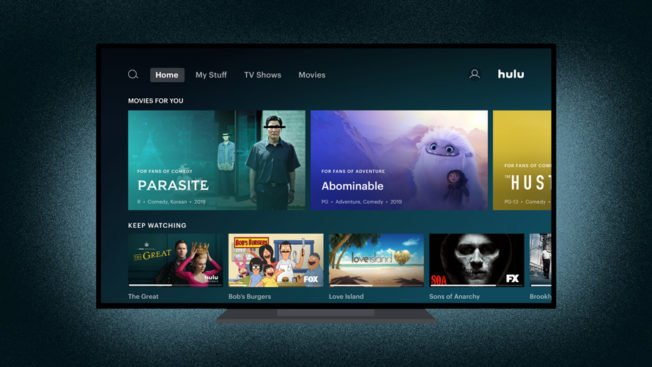
In today's fast-paced digital world, streaming entertainment has become a cornerstone of daily life. Yet, for many, the joy of diving into a favorite show or discovering a new movie can be hindered by barriers. That's where forward-thinking platforms like Hulu step in, meticulously crafting a user experience that genuinely aims to be inclusive. By thoughtfully integrating robust Hulu User Experience & Accessibility Features, the platform ensures that its vast library of content is not just available, but truly accessible, to a wider audience, including those with disabilities.
This guide isn't just about features; it's about empowerment, about the seamless navigation and enjoyment that arises when technology meets thoughtful design. Whether you're navigating the digital landscape with specific needs or simply curious about how Hulu makes its service more welcoming, you'll find comprehensive answers here.
At a Glance: Hulu's Accessibility Commitment
- Designed for Everyone: Hulu prioritizes an inclusive streaming experience, making content available to users with diverse needs.
- Core Features: Offers Audio Descriptions, Closed Captions/Subtitles, Keyboard Controls, Screen Reader compatibility, and Voice Commands.
- Wide Device Support: Accessibility features function across smart TVs, mobile devices, and web browsers.
- Global Reach: Available in the USA and Japan, serving a broad international audience.
- Flexible Subscriptions: Plans start at $5.99/month, ensuring a range of options for accessing features.
- Continuous Improvement: Hulu actively seeks community input for expanding its accessibility offerings.
Hulu's Commitment to Inclusive Entertainment
Since launching its content library in 2008 and rolling out original programming in 2011, Hulu has evolved into a premier Subscription Video on Demand (SVOD) and Over-The-Top (OTT) platform. Primarily serving audiences in the USA and Japan, Hulu has consistently broadened its appeal. But true appeal isn't just about the quantity or quality of content; it's about the ease with which every single person can engage with it.
Accessibility isn't a checkbox for Hulu; it's an integral part of their user experience philosophy. This commitment translates into practical tools that empower users to control their viewing experience, customize their interface, and connect with stories regardless of sensory or mobility challenges. It's about designing for the human first, ensuring that whether you're catching up on a Hulu Original or exploring a classic film, your path to entertainment is clear and unhindered.
Decoding Hulu's Core Accessibility Toolkit
Hulu's suite of accessibility features is designed to cater to a spectrum of needs, from visual and auditory impairments to challenges with traditional navigation. Let's break down each key feature and how it enhances your interaction with the platform.
Audio Description: Bringing Visuals to Life
Imagine experiencing a movie not just through dialogue and sound effects, but with an additional narrative track describing every crucial visual detail – the expressions, the settings, the actions unfolding on screen. That's precisely what Audio Description (AD) offers. It's an invaluable tool for users who are blind or have low vision, painting a vivid picture of the non-dialogue elements essential to understanding the story.
How Audio Description Works:
This feature layers an additional audio track over the program's original soundtrack. During natural pauses in dialogue, a narrator describes visual cues like character movements, scene changes, on-screen text, and significant gestures. This enriches the narrative, ensuring that the full context of the story is conveyed audibly.
Where to Find Audio Description:
Hulu is continually expanding its Audio Description library, currently offering over 60 shows and movies, including many popular Hulu Originals. You can easily discover these titles within the dedicated Audio Description Hub directly on the platform.
Supported Devices for Audio Description:
Hulu ensures broad availability, so you can enjoy AD across most of your favorite devices:
- Connected Devices: Smart TVs and TV-connected devices like Android TV, Apple TV, Chromecast, Fire TV, Roku, Samsung (excluding 2017 models), VIZIO, Xbox One, and Xbox 360.
- Mobile Devices: iPhones, iPads, Android mobile devices, and Fire tablets.
- Web Browsers: The latest versions of Chrome, Edge, Firefox, and Safari.
Activating Audio Description – A Step-by-Step Guide: - On Connected Devices (Smart TVs, Streaming Sticks, Consoles):
- Start playing your desired content.
- Press up on your remote control to bring up the playback bar and access the Settings menu.
- Navigate to "Audio options".
- Select "English", then choose "Audio description."
- Special Note for Apple TV: Swipe down on your remote during playback to access Settings, then select "English" and choose "Audio Description."
- On Mobile Devices (Phones, Tablets):
- Begin playing your content.
- Tap the screen to reveal the playback controls.
- Tap the Settings icon (often a gear symbol).
- Locate the "Audio" section.
- Tap to select "English- Audio Description."
- On Web Browsers (Hulu.com):
- While your show or movie is playing, click the Settings icon (gear symbol) on the playback bar.
- Open the "Subtitles & Audio" menu.
- Select "English- Audio Description."
Closed Captions & Subtitles: Clarity for All Ears and Languages
Closed Captions (CC) and Subtitles are perhaps the most widely recognized accessibility features, offering text-based representations of dialogue and, for CC, essential sound effects and speaker identification. They are crucial for users who are deaf or hard-of-hearing, ensuring they don't miss a single word or plot-critical sound. Beyond accessibility, subtitles also support multilingual content, making foreign-language films approachable and helping viewers learn new languages or simply understand fast-paced dialogue better.
The Difference Between Captions and Subtitles:
While often used interchangeably, closed captions typically include non-speech elements (like [doorbell rings] or [ominous music]), whereas subtitles usually focus solely on spoken dialogue. Hulu offers both, ensuring comprehensive text support.
Availability and Customization:
Closed captions and subtitles are available on a vast majority of Hulu's content library. You have full control to enable, disable, and even format them (adjusting size, font, color, etc.) to your preference on all supported devices.
Enabling/Disabling Captions & Subtitles – Your How-To Guide:
- Using the Latest Hulu App (Most Connected Devices):
- During playback, press up or swipe down on your remote to bring up the playback bar.
- Press up or swipe up again to access the Settings menu.
- Under "Captions & Subtitles," select "On" or "Off."
- Using the Classic Hulu App (Older Connected Devices):
- Start playing your content.
- Press up on your remote for the play bar.
- Press up again for more options.
- Select "Captions," then choose an available language or "Off."
- On Mobile Devices:
- Tap the screen during playback.
- Tap the Settings icon.
- Under "Subtitles & Captions," tap "auto," "on," or "off."
- Tap "X" to save your selection.
- On Web Browsers:
- Click the Settings icon during playback.
- Click the "Subtitles & Audio" menu.
- Choose an available language or "Off."
Changing Subtitle Language:
For select shows and movies, Hulu offers subtitles in both English and Spanish, catering to a broader linguistic audience.
- Using the Latest Hulu App (Most Connected Devices):
- During playback, press up on your remote to access the Settings menu.
- Under "Subtitles" or "Subtitle Language," select either "English" or "Spanish."
- Special Note for Apple TV: Swipe down to Settings, then choose your preferred language under "Subtitles."
- Using the Classic Hulu App (Older Connected Devices):
- During playback, press up on your remote for the play bar.
- Press up again for more options.
- Select "Captions," then choose "English" or "Spanish."
- On Mobile Devices:
- Tap the Settings icon during playback.
- Under "Subtitle Language," tap "English" or "Español."
- Tap "X" to save.
- On Web Browsers:
- Click the Settings icon during playback.
- Click into the "Subtitles & Audio" menu.
- Choose "English" or "Spanish."
Navigating with Your Keyboard: Mouse-Free Control
For users who rely on keyboards rather than a mouse or trackpad for navigation, Hulu provides comprehensive keyboard controls. This feature allows you to browse content, select shows, and manage playback entirely through keyboard commands. It's a fundamental aspect of web accessibility, ensuring that everyone can interact with the site's interface without needing precise pointer control.
Why Keyboard Controls Matter:
Keyboard navigation is essential for users with certain physical disabilities, those who use assistive technologies, or even for anyone who prefers the efficiency of keyboard shortcuts. It empowers a fluid, frustration-free interaction with the platform, from searching for titles to pausing a show. This thoughtful integration underscores Hulu's commitment to a truly universal design.
Screen Readers: The Voice of Navigation
For individuals with visual impairments, a screen reader is a powerful piece of software that converts on-screen text and elements into synthetic speech or a refreshable braille display. Hulu is designed to work seamlessly with popular screen readers, transforming the visual interface into an auditory experience.
How Screen Readers Interact with Hulu:
When you navigate Hulu with a screen reader, it vocalizes menu options, content descriptions, playback controls, and other interface elements. This allows visually impaired users to understand what's on the screen, select content, and manage their streaming experience independently.
Supported Screen Readers for Hulu:
Hulu's compatibility extends to several widely used screen readers:
- JAWS: Popular screen reader for PC and Mac.
- VoiceOver: Apple's built-in screen reader for macOS and iOS devices.
- TalkBack: Google's screen reader for Android devices.
- Audio Guide: Specific to Roku streaming devices.
- VoiceView: Amazon's screen reader for Fire TV and Fire tablets.
Browser Recommendations for Screen Reader Use:
For the best experience when navigating Hulu.com with a screen reader, it's recommended to use the latest versions of mainstream web browsers: Chrome, Edge, Firefox, and Safari. These browsers generally offer the most robust support for accessibility technologies.
Voice Commands: Control at the Sound of Your Voice
Voice commands offer a hands-free way to interact with Hulu, allowing you to search for content, control playback, and navigate menus using only your voice. This feature is particularly beneficial for users with limited mobility or those who simply prefer a more intuitive, conversational interaction with their entertainment.
Supported Voice Platforms:
Hulu integrates with major voice assistant platforms, primarily:
- Alexa: Amazon's voice AI, found on Echo devices, Fire TV, and other Alexa-enabled products.
- Google Assistant: Google's AI, available on Google Home devices, Android phones, and many smart TVs.
Users can speak commands directly to their device, such as "Alexa, open Hulu," "Google, play The Handmaid's Tale on Hulu," or "Pause." This allows for a streamlined, natural interaction that removes physical barriers to control. Hulu also actively encourages users to contribute ideas for more voice support within its community forums, demonstrating a commitment to evolving with user needs.
Beyond the Features: Holistic User Experience Considerations
While accessibility features are paramount, a truly excellent Hulu user experience also encompasses the broader ecosystem of the service. This includes the flexibility of its subscription plans, the reliability across diverse devices, and the ever-growing content library.
Hulu understands that a great streaming experience is multifaceted. It's not just about getting access to content, but about enjoying that content on your terms, with the tools you need. The platform's ongoing development, influenced by user feedback, ensures that both the core functionality and the specialized accessibility tools continue to improve. To stay current with new developments and enhancements, you might want to check out the Latest Hulu news and updates regularly. This approach fosters a community where everyone can participate in shaping their entertainment future.
Getting Started with Hulu: Plans & Pricing (Quick Overview)
Hulu offers a range of subscription plans, ensuring there’s an option that fits your viewing habits and budget, all while providing access to the powerful accessibility features discussed.
- Hulu (Base Plan): For just $5.99/month, you get access to Hulu's expansive on-demand library with limited commercials. This is an excellent entry point to explore their content and experience the accessibility features firsthand.
- Hulu + No Commercials: At $11.99/month, this plan offers an uninterrupted viewing experience for most of Hulu's on-demand library, perfect for those who prefer seamless storytelling.
- Hulu + LIVE TV: For $44.99/month, this comprehensive package combines the on-demand library (with ads) with live access to local, regional, and standard cable channels, offering a robust alternative to traditional cable.
Each plan, regardless of its commercial structure, supports the full suite of accessibility features, ensuring that your chosen viewing experience is always inclusive.
Your Next Steps for an Enhanced Hulu Experience
Hulu's commitment to accessibility and a superior user experience is clear. From detailed audio descriptions to flexible voice commands, the platform strives to break down barriers and open up a world of entertainment to everyone.
Your next step is simple: explore. Dive into Hulu's vast content library with confidence, knowing that the tools are there to customize your viewing experience. Experiment with audio descriptions, adjust your closed captions, or navigate with your screen reader. The more you engage with these features, the more seamless and enjoyable your streaming journey will become.
Remember, accessibility is a journey, not a destination. Platforms like Hulu are continually working to enhance their offerings. By utilizing these features and, where possible, providing feedback to Hulu directly, you contribute to a future where entertainment truly is for all. Embrace the power of inclusive design and unlock your ultimate streaming experience with Hulu.